 Docs
Authentication & Keys
Create a model API key and manage its scope, limits and lifecycle.
Choose a key type#
The console has two credential pages.
- API Keys creates platform keys for model requests.
- Management API creates keys for read-only wallet and API key queries.
Use a platform key when connecting a model or coding tool. Do not put a management key in its place.
Create and restrict a platform key#
Open API Keys and choose Create API key. Enter a name, check the options, then choose Create and show key.
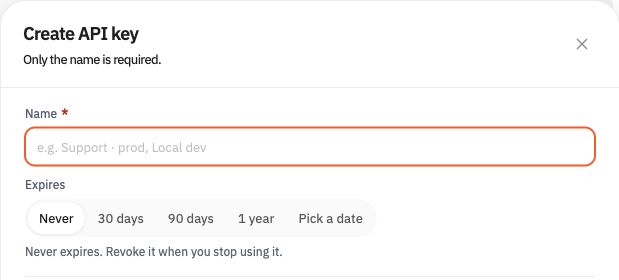
Set the following options for the key's intended use.
| Setting | What it controls |
|---|---|
| Name | Identifies the key in the list and request records. |
| Expires | Sets when the key expires. |
| Daily budget | Sets a daily spend limit that resets at 00:00. |
| Lifetime spend cap | Sets a cumulative spend limit that does not reset. |
| Model scope | Allows all models available to the account or only selected models. |
| Requests per minute | Adds a request rate limit for the key. |
| Max concurrency | Limits simultaneous requests. |
| IP allowlist | Restricts accepted source IP addresses. |
Open Rate & security to configure request rate, concurrency and IP restrictions. Empty spend-limit fields add no key-level spend limit. Account and model limits still apply.
When either spend limit is reached, new requests are rejected. Requests already running finish and are billed.
Store and use the key#
The full key is shown only once, when it is created. Save it in a secret store before closing the result.
Keep the key in the server or tool execution environment. Do not put it in frontend code, shared configuration, screenshots or prompts.
Authentication headers depend on the protocol.
| Protocol | Credential header |
|---|---|
| Chat Completions, Responses, embeddings, image and audio APIs | Authorization: Bearer |
| Anthropic Messages | x-api-key |
| Gemini v1beta | x-goog-api-key |
Use the selected protocol's integration guide for the complete request. Keep your address and key in the same console environment.
Replace and revoke keys#
Review keys in API Keys. Check their owner, status, last use, expiry and spend.
To replace a key, create the replacement and update the applications that use it. Confirm their requests work before revoking the old key.
If a key is exposed, revoke it promptly and replace it in the affected applications. Revocation cannot be undone. Historical usage remains available.
Use a separate key for each application to make usage easier to trace and access easier to remove.
Check authentication failures#
For 401 errors, confirm that the key is complete, unexpired and not revoked. Check that the application reads the intended credential variable.
If a model request is rejected, also check the model scope, spend limits, rate limits and IP allowlist.
For 429 errors, read the response to identify the limit that was reached. Changing a credential does not remove account or model limits.
Continue with Quickstart to send a request and check its record.